
Install JITTER — the Human Writing Protocol for Google Docs.
How to add the JITTER Chrome extension and generate a cryptographic proof that your writing is human.
JITTER is a free Chrome extension that proves your writing is human. It records your drafting process in Google Docs — typing rhythm, pauses, and revisions — and issues a cryptographic receipt you can share with a teacher, editor, or colleague. No readable text ever leaves your device.
How to install JITTER and get your first receipt.
- Step 01
Install from the Chrome Web Store
Open the official JITTER listing and click Add to Chrome. The extension is free, ad-free, and weighs under 150 kilobytes. Chrome will show you the permissions it needs — activeTab, storage, and clipboardWrite — which are the minimum required to sign a drafting session without ever reading your document text.
- Step 02
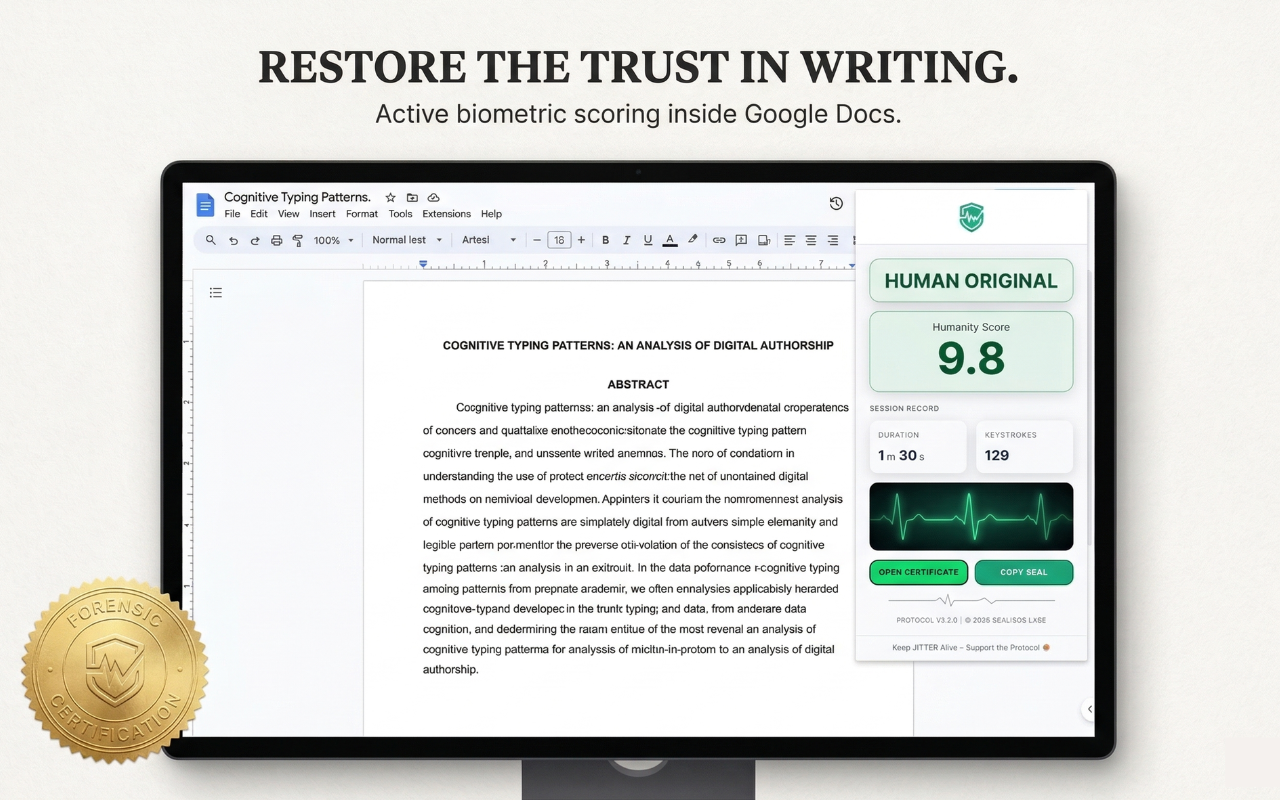
Open a Google Doc and start drafting
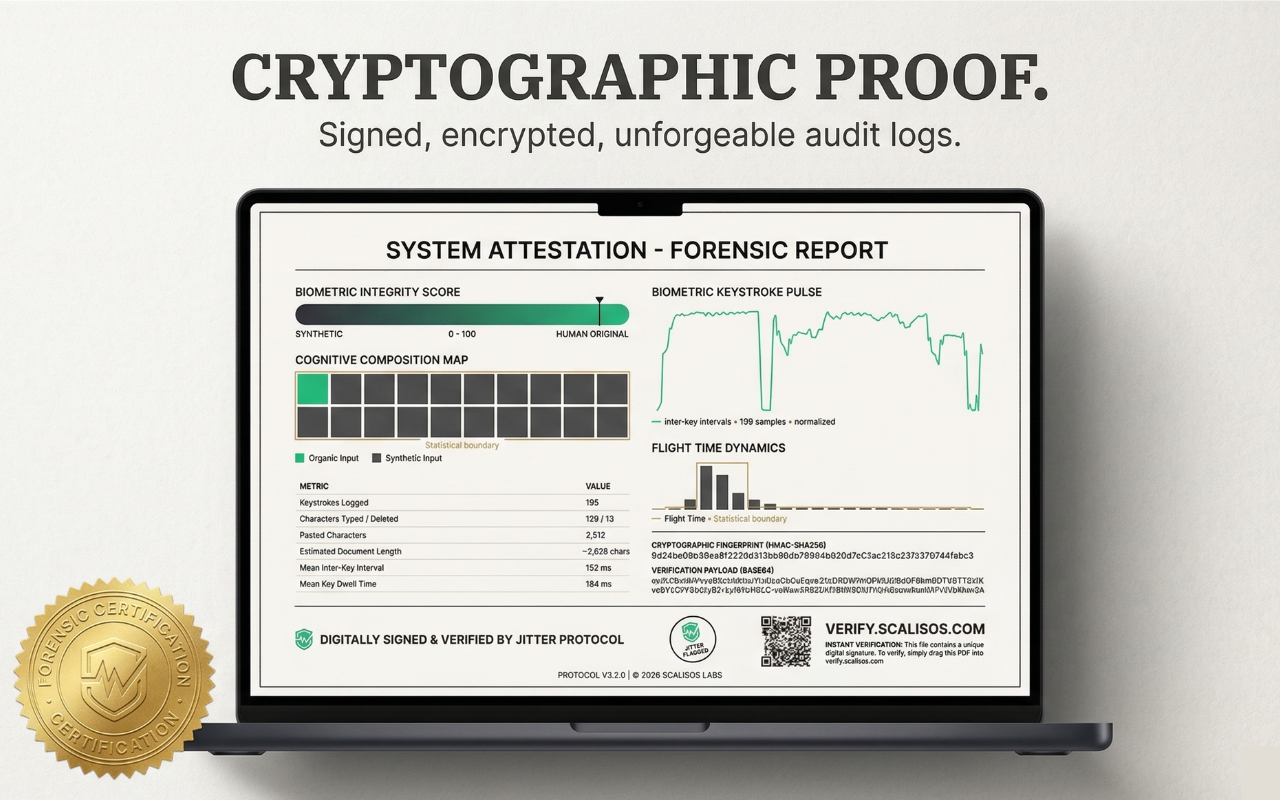
Go to docs.google.com and open or create a document. JITTER attaches automatically. Draft the way you always do — type, pause, revise, even use backspace. JITTER listens to the rhythm locally and builds a Proof-of-Process receipt in the background. Readable text never leaves your device.
- Step 03
Share the receipt with anyone who asks
When you're ready, open the JITTER popup and copy your seal. Paste it into an email, a submission form, or a message — the recipient can verify the receipt in seconds at verify.scalisos.com. No account, no sign-up, no sharing of your document text. Just cryptographic proof that a human drafted it.
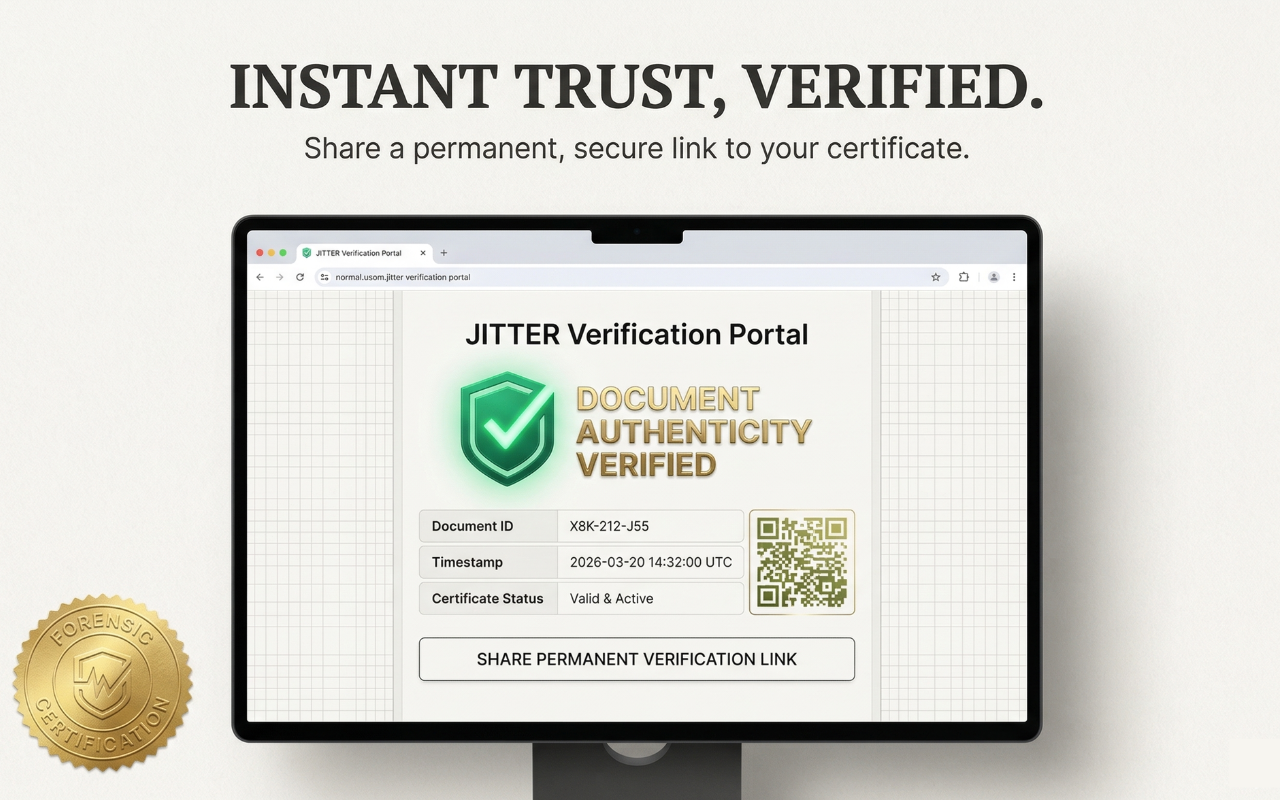


That's it. Once you're drafting, JITTER does the rest — an invisible, local recording of how your work came to be.
Add to ChromeQuick answers before you add it.
Will JITTER slow down Google Docs?
Can I uninstall JITTER anytime?
Does JITTER work on Edge, Brave, Arc, or Opera?
Still deciding? Read the HVP protocol specification or browse the journal.
Add JITTER to Chrome